2026-08-26
Getting object scale and proportion right in AI images
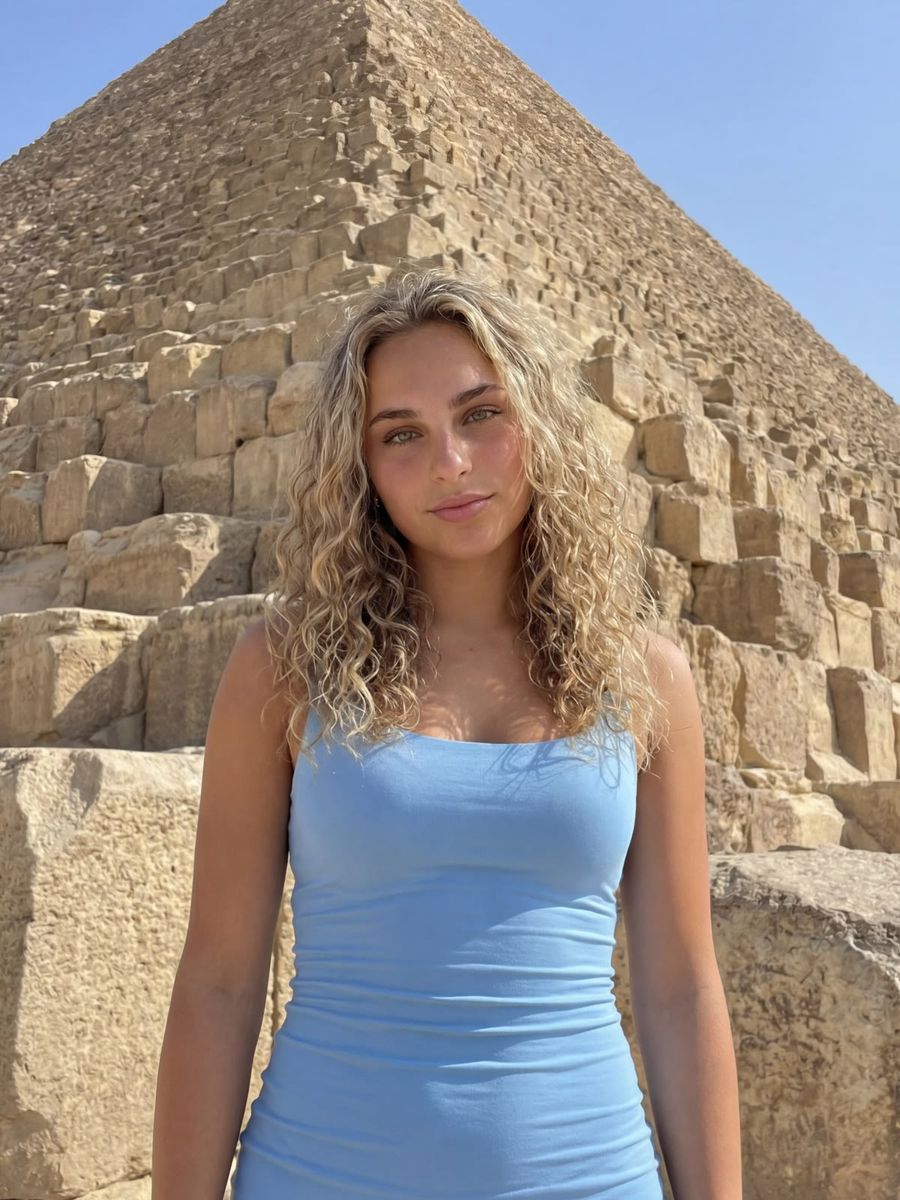
AI image models have no sense of real-world size: they place each object at a size that is typical for that object in the frame and do not keep the proportions between objects on their own. So a ring sometimes renders as large as the hand wearing it, or a coffee cup stands as tall as the table beside it. Proportions only add up once you give the model an anchor and a clear frame.
Why AI gets proportions wrong so often
Models learn from their training data what objects look like on their own, not how big they are relative to each other. They place every subject at a "typical" size and fill the frame neatly, even when that breaks the scale.
Research shows how weak this is. In an early-2026 benchmark testing spatial intelligence (Everything in Its Place), even the strongest models scored around 32% on "spatial comparison", weighing size, quantity and length against each other, while pure guessing already lands near 20%. In PhyBench, a test for physical logic, DALL-E 3 put an elephant and a mouse on a seesaw that stayed perfectly balanced, as if they weigh the same.
The practical lesson: relative size is almost a coin flip for the model. Do not count on it working out by itself, steer it deliberately.
Give your scene an anchor for scale
The most reliable way to control size is to put an object of known size in the frame, so the model has something to measure against. Without an anchor, the scale drifts in every direction.
- A person as a yardstick. Someone next to a building, a product or a landscape gives the model a fixed reference. Think of the subject in this photo, small against a large pyramid: the person tells you instantly how big everything else is.
- A hand for small objects. For a ring, watch or cosmetics bottle, a hand or wrist works as an anchor. "A ring on a finger, close-up" scales better than "a ring" on its own.
- An everyday object. A coin, a glass or a coffee cup in frame anchors the size of everything around it.
- Describe the context, not just the adjective. "A coffee cup as tall as an adult" steers more strongly than "a giant coffee cup", because you hand the model a concrete comparison.
Steer size with frame and distance, not adjectives alone
The frame sets apparent size more reliably than words like "big" or "small". What sits large in the foreground reads as important; what sits small in the background reads as far away.
- Put your main subject large in the foreground and the secondary element small and out of focus behind it: "the bottle large in the foreground, the table small and blurred in the background".
- Use camera concepts: "close-up of", "fills the frame", "wide shot with the subject small in the distance". That is visual language the model knows.
- Combine it with position. Terms like "to the left of", "in front of" and "behind" reinforce the scale, because foreground and background automatically mean big and small.
- Comparisons like "much bigger than" help a little, but the model binds them weakly. Always anchor them to a spot in the frame instead of relying on them.
If you would rather not type prompts like this out every time, let the prompt generator turn your idea into a structured description with scene, framing and distance built in.
Fixing proportions after the fact
If one element renders at the wrong size, do not throw out the whole image. Often the rest of the scene is fine and the error sits in a single object.
- Use image-to-image with a reference that already has the right proportion, so the model copies the size instead of guessing.
- Fix a mis-scaled detail locally with the photo editor: mask the object and regenerate it at the correct size without touching the rest.
- Expect a few tries. Because relative size is almost a guess, it pays to use pay-per-render to make a handful of variants cheaply and pick the best one.
This matters extra for product photos: a watch that sits too large on a wrist, or a bottle that does not match the table, makes a webshop image look fake at a glance.
Frequently asked questions
Why does my AI model render objects at the wrong size?
Because the model has no sense of real size. It places each object at a typical size in the frame and does not reason about how big they should be relative to each other. In benchmarks, even top models get such size comparisons right only about a third of the time.
How do I indicate scale in a prompt?
Put an object of known size in the frame as an anchor, such as a person, a hand or a coin, and steer the size with frame and distance: large and up front versus small and in the background. That works better than just writing "big" or "small".
Does "much bigger than" help in my prompt?
A little. The model binds comparative terms weakly, so do not rely on it blindly. Always combine them with a concrete spot in the frame and an anchor, and the proportion holds up.
Can I fix a wrong proportion after the fact?
Yes. Use image-to-image with a reference that has the right size, or mask the mis-scaled object in the photo editor and regenerate only that part. That way you do not have to re-render the part of the scene that already worked.
Scale and proportion are exactly the kind of detail that gives an AI image away or makes it believable. Give your scene an anchor, steer with the frame and test a few variants. Create an account and try it on your own image.