2026-08-19
Remove objects from your photo with AI inpainting
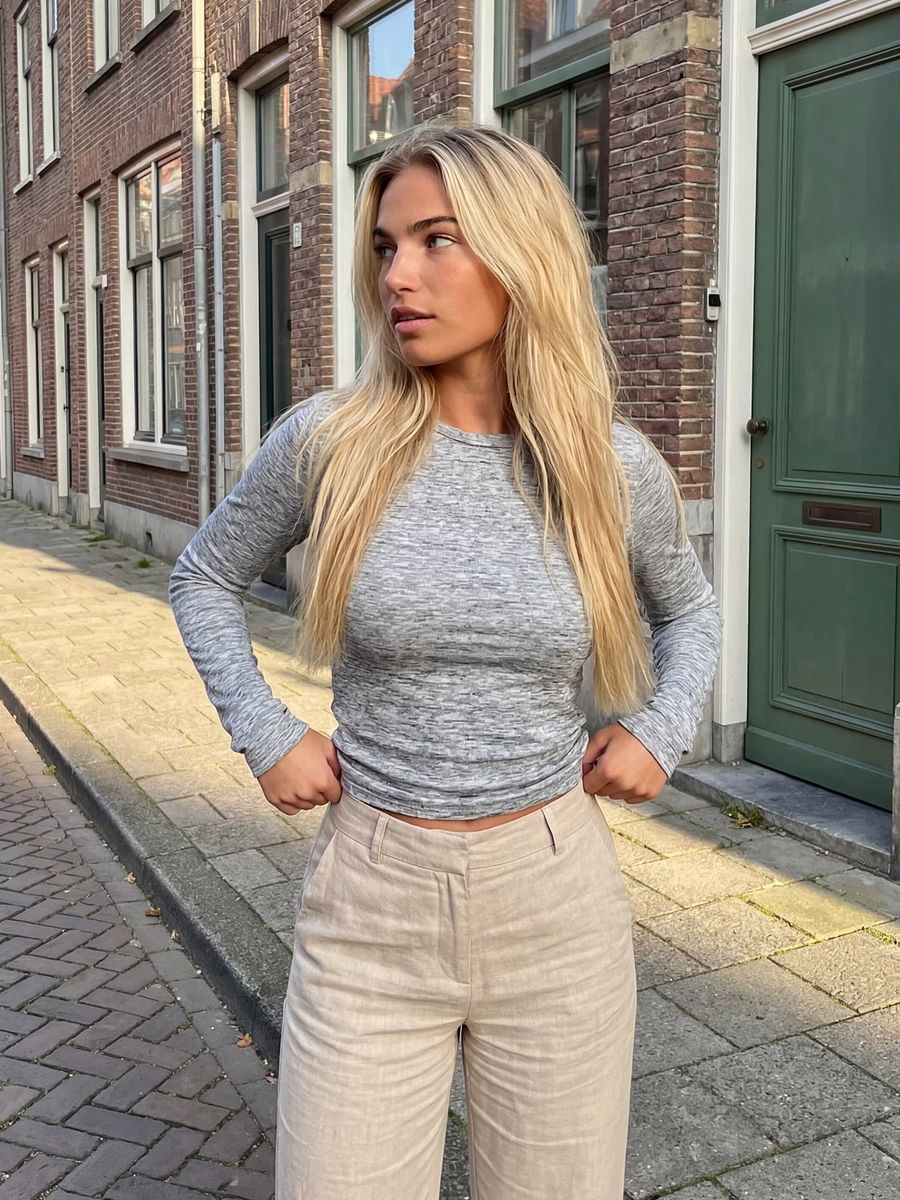
You remove an object or person from a photo with AI inpainting: you mark the area that has to go, and the model fills that spot with new image content that matches the surroundings. No cut-out hole, no visible smudge, as long as you go about it the right way. This guide explains how inpainting works when removing something, how to make a clean mask, and where it usually goes wrong.
What inpainting does when you erase something
AI inpainting does not reconstruct what was actually behind the object, it generates what probably belongs there. The model looks at the light, perspective, and texture around your selection and invents a fitting fill. That often works surprisingly well, but it stays a context-based guess, not a magic trick that recovers hidden information.
For creators and web shops that saves a lot of time. According to Photoroom, e-commerce brands cut their photo editing costs by 93% and launch products up to 4x faster with AI photo tools. Cleaning away a distracting element takes seconds instead of minutes of fiddling in an editor.
Make a clean mask first
The mask determines your result. Select just a little wider than the object itself, so its edges fall fully inside your selection. Include the side effects too: the cast shadow on the ground, a reflection in a window or on wet asphalt, and any mirroring in water. Leave those in and a "ghost" of the removed object stays behind.
- Select the object plus a small margin around it.
- Include shadow and reflection in your mask.
- Avoid letting your mask accidentally cover a face, hand, or text that should stay.
Why the background decides whether it works
The complexity of the background predicts your success better than anything else. A plain wall, a clean sky, or an even lawn get filled in almost flawlessly. A background with repeating structure, such as tiles, a railing, or a bookshelf, usually works, but check for kinks in the lines. If there is text, a face, or a tight pattern right behind the object, the chance of visible errors is high. So when you generate, avoid placing your subject right in front of a busy detail you want to keep later.
Remove large objects in steps
Removing a large object in one go forces the model to invent a big empty area, and that is exactly where smudges and repeated patterns appear. Work in phases instead: remove one half first, let the AI fill it in, and use that new piece as context for the second half. This step-by-step approach gives a clearly cleaner result than one large selection.
Is an attempt coming out messy? Generate again with a slightly different mask or a shorter description. Because you pay per edit, a second attempt costs little and you iterate cheaply toward a clean image.
Pick the right tool for the job
Not every cleanup is inpainting. If you want to take one object or person out of an otherwise good photo, the AI Photo Editor with inpainting is the right choice: mark, describe, fill. If you want to cut out the whole subject and drop the background, use background removal. And if so much changes that rebuilding is easier, image-to-image beats endless masking.
Frequently asked questions
Can AI recover what was behind the object?
No. Inpainting does not know what was hidden; it generates a plausible fill based on the surroundings. Against a plain background that is rarely noticeable, against a complex detail it is.
Why do I see a faint smudge where the object was?
Usually because your mask was too tight, or because the shadow or reflection was left in. Select a little wider and include those side effects, and the "ghost" disappears.
How do I remove a person from a group photo?
Mask the person including their shadow, and work in steps for a large figure. Watch out for other people's overlapping limbs; those should stay outside your mask.
Does object removal work on video too?
Single photos are the most reliable. In video the fill has to stay consistent across many frames, which is harder. Start with stills and test small.
Removing objects mostly comes down to a clean mask and a patient, step-by-step approach. Create an account and try it on one distracting detail in your own photo.