2026-08-30
Generative expand: widen your AI photo without a seam
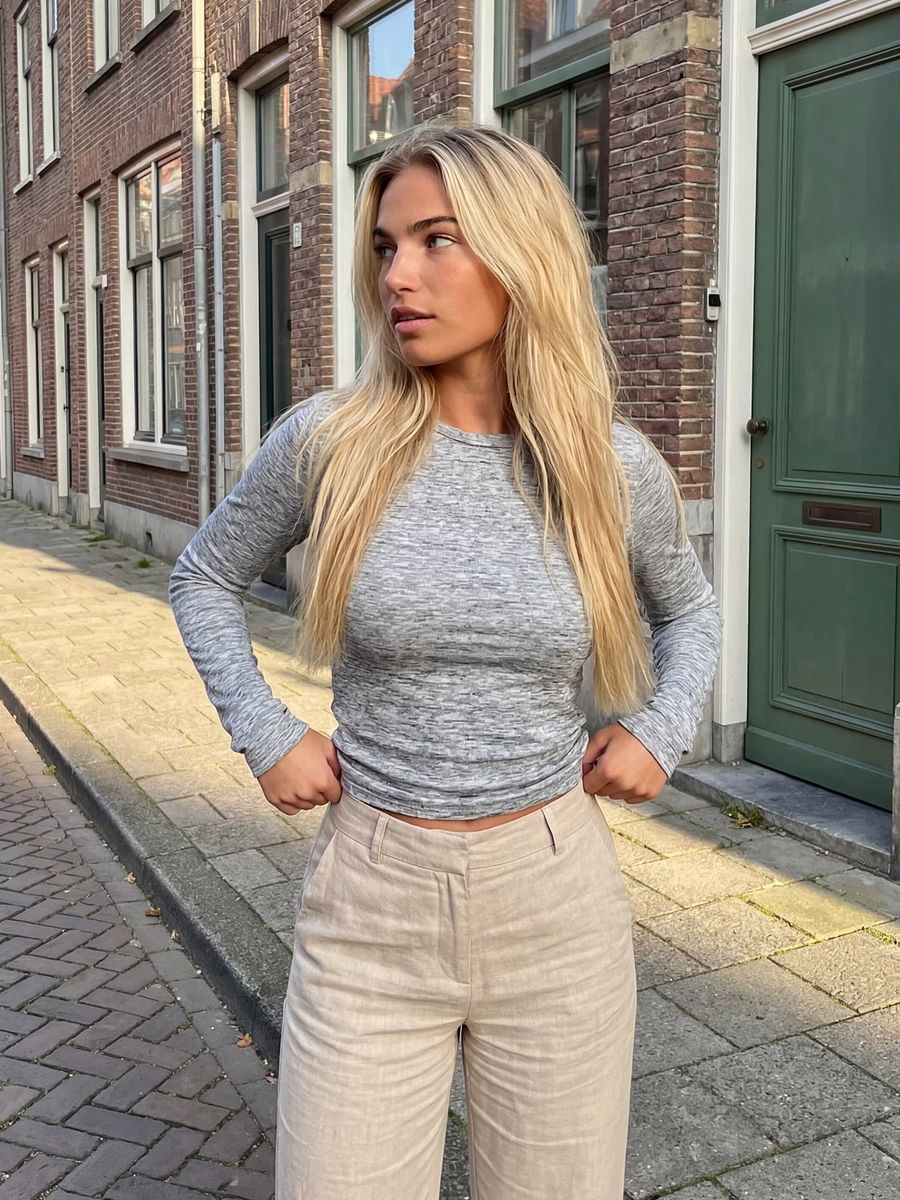
Generative expand, also called outpainting or uncropping, extends an existing photo beyond its original edges: the AI generates new image content in the empty space around it that blends seamlessly with what is already there. You use it to change the aspect ratio, add more headroom above a face, or rescue a too-tight crop without re-rendering the whole scene.
How is it different from inpainting?
Inpainting fills an area inside your photo; outpainting adds image content outside the frame. With inpainting you select a wrong object, for example, and let the AI replace it. With outpainting you place your photo on a larger canvas and let the model fill the new border in the same style, color and lighting.
Worth remembering: every pixel the AI adds is a prediction, not recovered reality. The model guesses what might exist beyond the frame based on what it can see. That works well for skies, walls and floors, and less well for complex details that have to make logical sense.
When do you use generative expand?
Use it whenever you need more image than you rendered. The four most common situations:
- Changing format. Stretching a square or landscape image to 9:16 for Reels, or the other way to 16:9, without cropping out your subject.
- Adding breathing room. More sky above a head (headroom) or space beside your subject for a title, logo or UI button.
- Rescuing a tight crop. A shot where a shoulder, the feet or part of the surroundings just fell outside the frame.
- Making a cover from a portrait. Widening a vertical image into a banner without regenerating everything.
The technique is mainstream by now. Adobe brought Generative Expand to Photoshop back in 2023, and the Firefly models behind it had generated more than 24 billion images combined by mid-2025 (source: Adobe, via Digital Camera World). Nearly every serious image tool now has some form of expand or uncrop.
How to get a seamless transition
The quality of your expansion depends mostly on how much you ask for at once and how well you describe the new space.
- Expand in steps, not all at once. A narrow strip per render gives the model more to hold onto than a canvas that suddenly doubles in size.
- Describe the new space in your prompt. Say what belongs beyond the frame ("same street, wet cobblestones, evening light") so the fill doesn't have to guess.
- Let light, perspective and shadow continue. The light direction and the vanishing lines at the new edge must match the original, or the seam shows immediately.
- Check the transition at full size and at your final crop. An expansion that looks right at full frame can still put a seam through your mobile crop.
Where generative expand tends to go wrong
Most mistakes come from the model repeating or inventing something that doesn't fit. Watch for these four:
- Repeated texture or a duplicated object, such as a second lamppost or an extra hand at the edge.
- A perspective line that kinks: a wall, table edge or horizon that doesn't run straight.
- Logos, text or faces at the new border that distort; the AI can't reliably invent those.
- A person who ends up half in the new space and looks unnaturally pasted in.
If it goes wrong, choose smaller steps, a different crop that keeps more of the original, or touch up the border with inpainting.
How to approach it on AI Formule
You approach generative expand with two tools that complement each other. Use your photo as a reference in the photo generator and generate at the wider aspect ratio you need; choose your ratio before you render rather than cropping afterwards. Then touch up the new edges and the transition with the photo editor, which regenerates a masked area on purpose.
Because you pay per render, you can lay a few variations of the same expansion side by side and pick the cleanest one, without being tied to a subscription.
Frequently asked questions
What is the difference between outpainting and inpainting?
Inpainting replaces or fills an area inside your photo; outpainting adds new image content outside the existing frame. The first repairs, the second enlarges.
Can I expand a low-resolution photo and still keep it sharp?
Expanding adds image content, but it does not make existing pixels sharper. If you also want more detail, upscale separately after you expand.
How much can I expand at once?
Small steps work better than one big jump. The more empty space you give the model in a single render, the higher the chance of repetition or a visible seam.
Generative expand works best as a safety net: you no longer have to frame perfectly while generating, because you can add space afterwards. Keep your subject centered in the original render and let the surroundings be the part you expand later.
Want to try it? Create an account and pay per render while you get your format exactly right.