2026-06-30
Common AI portrait mistakes and how to avoid them
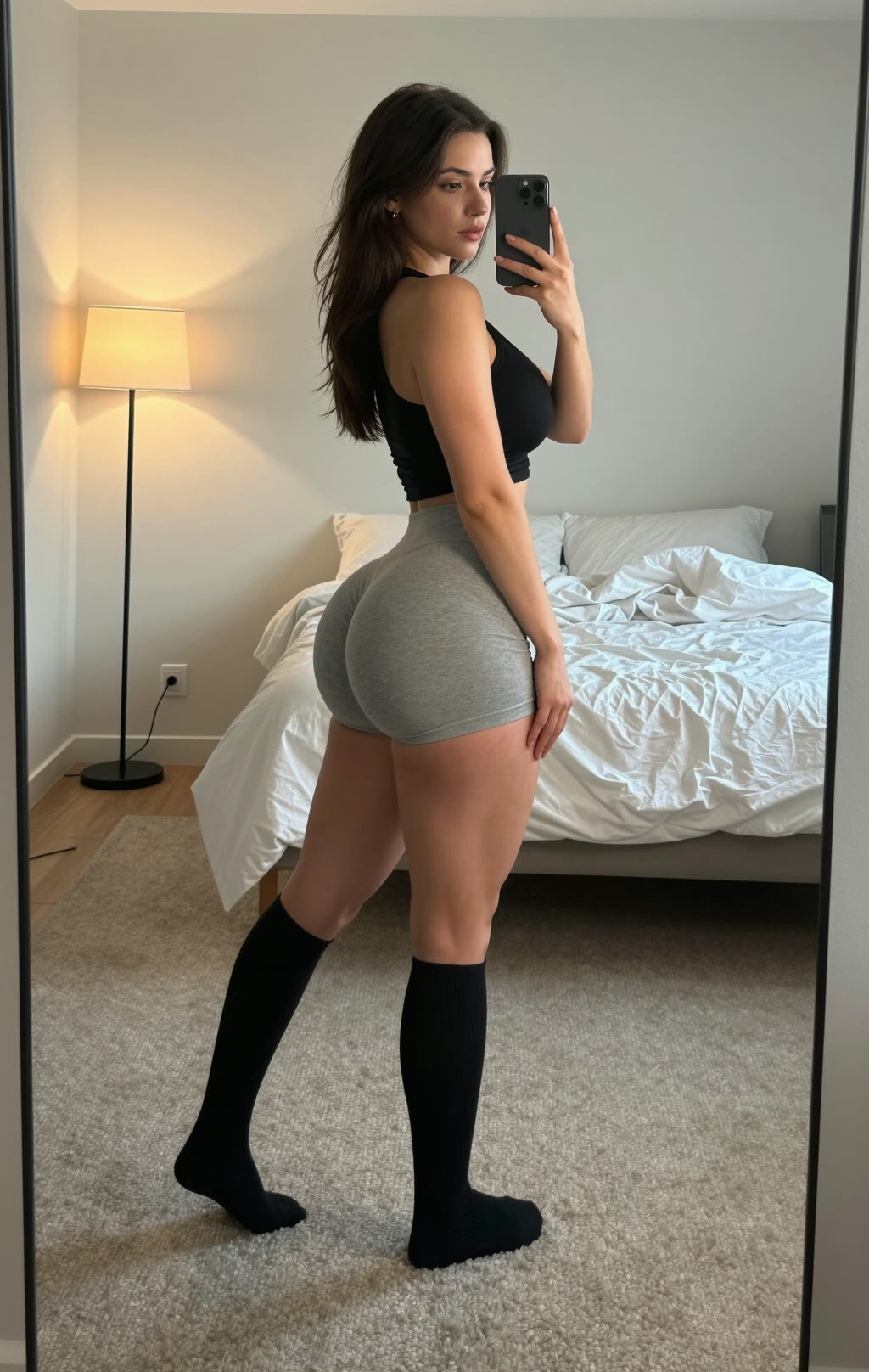
AI portraits have come a long way in the past few years; you often have to zoom in to tell whether a photo is real or generated. Even so, three things still regularly give an image away as AI: the hands, the eyes and the skin. The good news is that you can avoid most mistakes right in your prompt once you know where things go wrong.
Why hands, eyes and skin are the hard parts
AI does not understand anatomy; it predicts patterns based on millions of examples. That explains the three weak spots.
- Hands appear small and in countless positions in photos, so the model has less to learn from and sometimes simply counts too many fingers.
- Eyes are the first thing your brain checks for authenticity, so the smallest flaw stands out immediately.
- Skin turns out too smooth because a lot of training images are heavily retouched, which nudges the model toward a filtered default look.
Hands: too many fingers and odd poses
The classic problem: six fingers, fused fingers or a thumb on the wrong side. You cut the risk down a lot with a few choices.
- Describe what the hands are doing: "hands in pockets", "arms crossed", "hand resting on a table". The clearer the pose, the less room for errors.
- Hide the hands when they are not important, for example with a close-up cropped at the shoulders.
- Still not working? Generate again with a slightly different prompt, or fix only the hand (see below).
Eyes, teeth and symmetry
Common mistakes are eyes of different sizes, a gaze where one eye drifts off, or teeth that melt into each other. They happen when your prompt leaves too much open and the model starts guessing.
- Be specific: name the age, eye colour, expression and gaze direction. "A woman in her thirties, warm brown eyes, slight smile, looking into the lens" gives a more natural result than just "a woman".
- Pick a neutral camera angle at eye level. Extreme angles increase the chance of distortion.
- A calm, partly closed smile often prevents the melted-teeth look.
Skin: avoiding the plastic look
Overly smooth, glossy skin is one of the clearest AI tells. You flip that around by asking for texture explicitly instead of leaving it to the model.
- Add terms like "natural skin texture, visible pores, fine lines, slight unevenness in skin tone".
- Watch one word: "flawless" or "perfect skin" can override every texture term you added. Go for "natural, realistic portrait" instead.
- Side light reveals texture; flat frontal light hides it. Generate at a higher resolution too, so fine detail has the room to stay visible.
Repair instead of starting over
Sometimes one detail is off while the rest is exactly right. In that case you do not have to regenerate everything.
- With the photo editor you select the problem area, for example a hand or the mouth, and let the AI refill only that part.
- Want more detail in the skin and eyes? Enlarge the image with the image upscaler; fine texture shows up better at a higher resolution.
- Don't feel like writing every prompt yourself? The prompt generator turns your idea into a full description with pose, lighting and composition.
The main thing to remember: the more specific your prompt, the less the AI has to guess, and the less you have to repair afterwards. Want to try it? Create an account and generate your first portrait with the photo generator.