2026-07-29
Which resolution and aspect ratio should you pick?
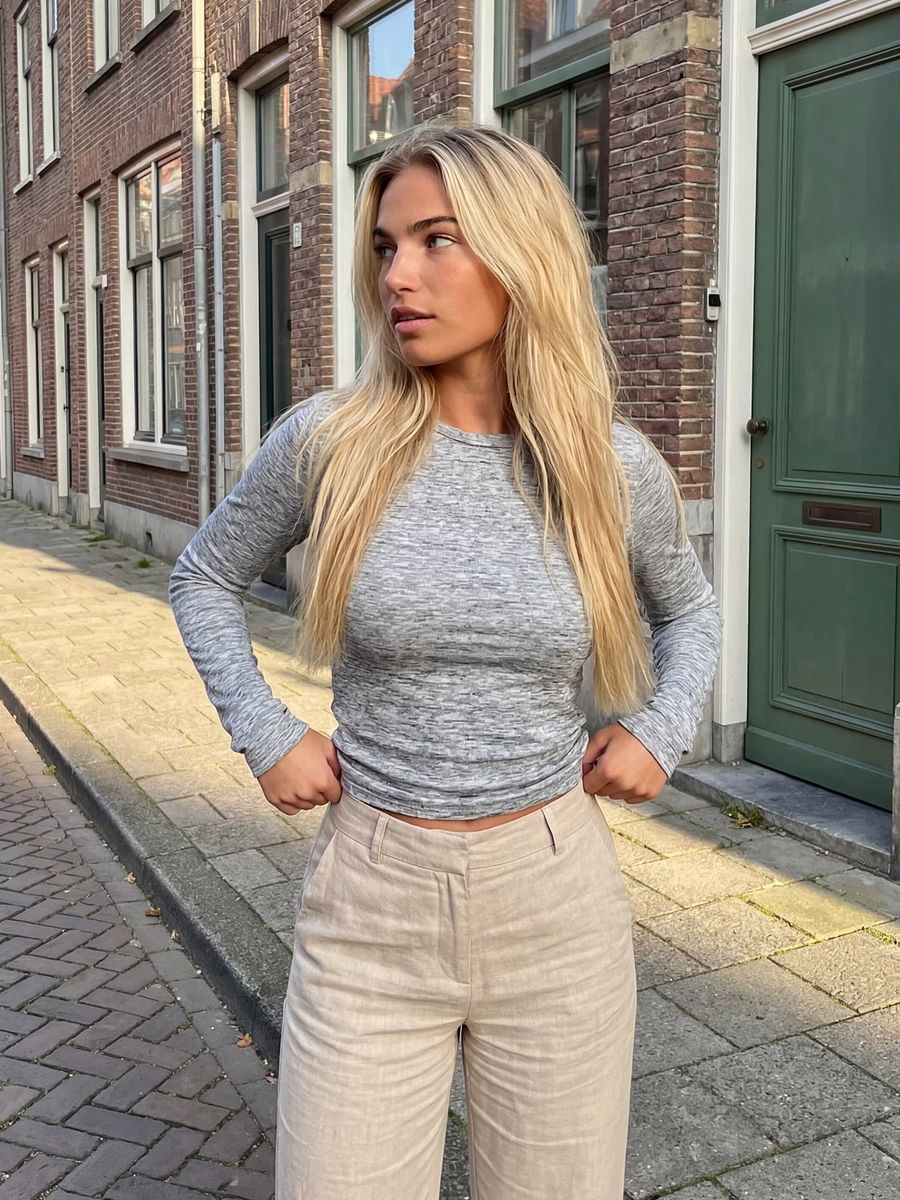
Generate your AI image at the resolution the model was trained on (its native resolution) and pick your aspect ratio before you hit generate. That produces sharper work than stretching a small image afterwards or forcing an oversized format. With AI imagery, bigger is not automatically better.
What is a model's native resolution?
The native resolution is the pixel size a model was trained on and where it delivers the most detail. Ask for something inside that range and the model builds every detail on purpose. Ask for something far beyond it and it starts guessing.
Every image model is trained around a fixed pixel budget and a set of aspect ratios. The open model SDXL, for example, was deliberately trained on multiple aspect ratios around roughly one megapixel (1024×1024) rather than a single square format, as the SDXL paper (2023) describes. Newer premium models now build native images up to 2048×2048 pixels, four megapixels. That is the size where you get the sharpest result.
Why a bigger format isn't automatically sharper
Forcing a size far above the native one often makes your image worse, not better. Beyond the range the model was trained on, you get the familiar failures: repeated elements (two heads, duplicate limbs), visible seams in the composition, or faint halos around your subject.
That comes down to the difference between generating and upscaling. When generating natively, the model creates every pixel with intent. When upscaling, an existing image is stretched and an algorithm guesses the missing pixels. That guessing costs fine detail: skin turns waxy, textures blur together.
The practical takeaway: generate at or near the native resolution, and only enlarge afterwards if you need more pixels.
How do you choose the right aspect ratio?
Choose the aspect ratio of wherever the image will end up, and set it before you generate. The ratio controls composition and framing, not sharpness. Cropping afterwards throws away pixels and can lop off a head or an important detail.
- 1:1 or 4:5 for an Instagram feed post
- 9:16 for Reels, TikTok, Shorts and stories
- 16:9 for YouTube, a website or a presentation
- 3:2 or 2:3 for a classic photo look
The AI Photo Generator offers seven aspect ratios (1:1, 16:9, 9:16, 4:3, 3:4, 3:2 and 2:3). Pick the one that matches your destination so you don't have to reframe the image later.
Generate native first, then upscale
The sharpest route to a large image is native first, upscale second. That keeps the detail the model actually built and only adds extra pixels afterwards.
- Generate at the model's native resolution, in the right aspect ratio.
- Judge the result on detail and composition, not on size.
- Need print, a large banner or 4K? Run the image through the Image Upscaler to 2K, 4K or 8K.
This way you don't pay for failed oversized renders and you keep costs under control: you pay per render and only upscale when you genuinely need to.
Quick checklist for your settings
- Pick the aspect ratio of your destination before you generate.
- Stay at or near the model's native resolution.
- Don't count on a huge format to "conjure" detail; generate native, then upscale.
- Crop as little as possible afterwards; it costs pixels and composition.
Frequently asked questions
Which aspect ratio do I use for Reels and TikTok?
Use 9:16, the vertical format that fills the full portrait screen. For a regular feed post, 1:1 or 4:5 works better.
Is a higher resolution always better?
No. Beyond the model's native resolution, failures like duplicated elements and halos become more likely. Generate at the native size and upscale only afterwards if you need more pixels.
Should I generate in 4K directly or upscale afterwards?
Generate natively first for the sharpest detail, then upscale the result to 4K or 8K. That usually gives a cleaner image than forcing a very large format up front.
What exactly is native resolution?
The native resolution is the pixel size a model was trained on and where it delivers its best detail, for example around one megapixel on older models and up to four megapixels on newer ones.
Want to set resolution and aspect ratio yourself and pay per render? Create an account and generate your first sharp image.